Aligning pivots of walls and pillars
It is crucial to ensure that the pivot points of wall and pillar parts are accurately placed, as the BuildingGen plugin uses these points to position each part correctly at the sides or corners of the unit space.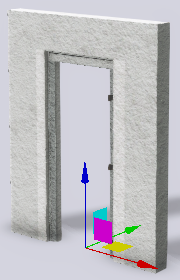
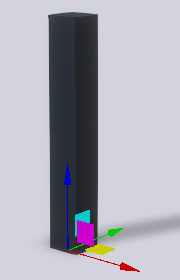
Adjusting wall and pillar pivot positions
- After applying textures to your imported walls and pillars, make sure to have them selected.
- Navigate to the Modify > Attribute > Pivot section to reposition their pivot points.
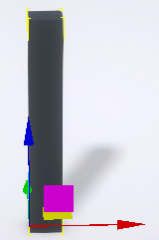
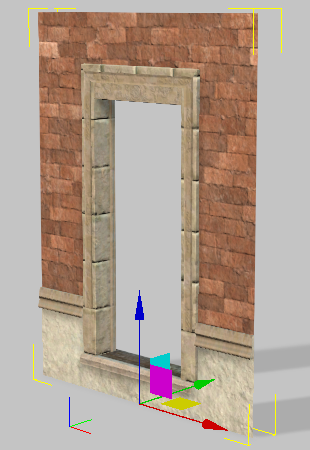
- Rotate the wall using the 3D gizmo to align it with the negative y-axis, ensuring that it faces forward.
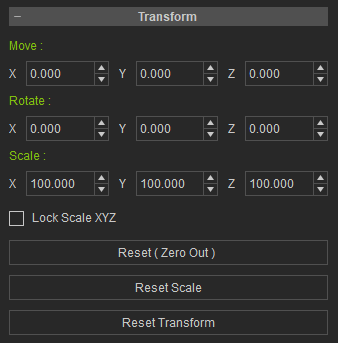
- Navigate to Modify > Attribute > Transform and click the Reset Transform button to save the current scale setting as the new default scale.
- Click Reset (Zero Out) to move the part to world origin, effectively zeroing out the transformation values (move, rotate, and scale).
 Note:
Note:The default scale setting is 100 cm for all three axes.
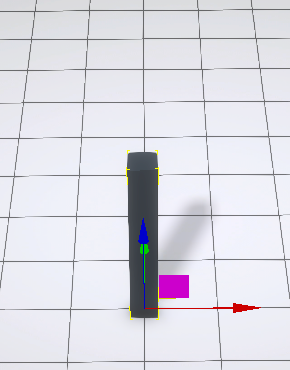
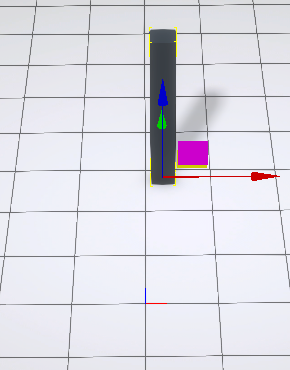
Before using Reset (Zero Out), the pillar is arbitrarily placed in the scene. After using Reset (Zero Out), the prop is repositioned to world origin.
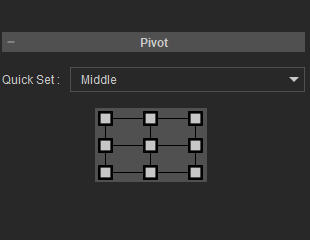
For the walls, select the “Front” option in the Quick Set drop-down menu and select the Lower Center point in the pivot diagram.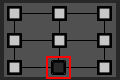
The wall’s pivot point functions as its center base. During construction, BuildingGen will place the walls at the bottom four edges of a unit box.
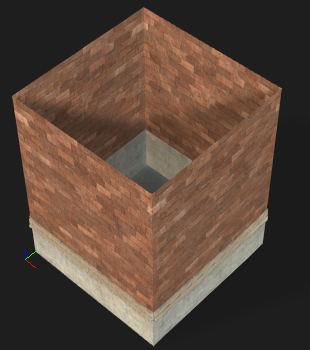 | 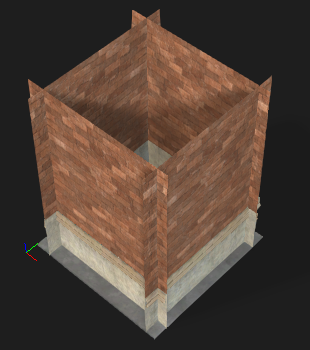 |
Correct pivoting allows the walls to seamlessly align with each other. | Incorrect pivoting can cause the walls to clip into one another. |
The pillar’s pivot point functions as its center base. During construction, BuildingGen will place the walls at the bottom four corners of a unit box.
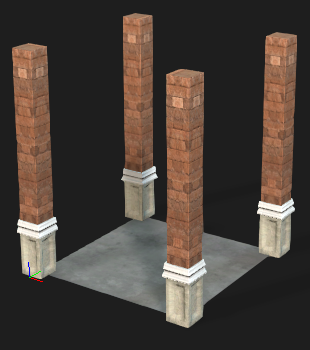 | 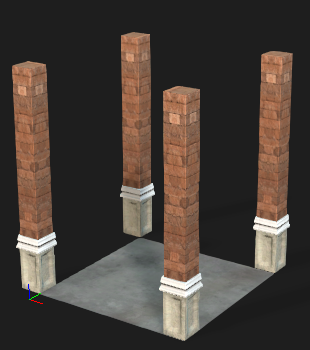 |
Correct pivoting allows the pillars to be placed on the four corners of the floor. | Incorrect pivoting causes the pillars to offset from the four corners of the floor. |
Using a floor piece to verify pivot positions of walls and pillars
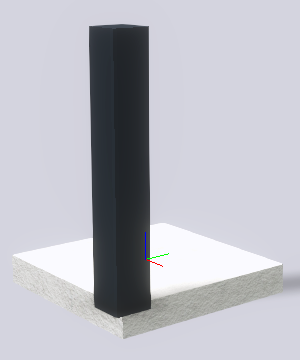
To ensure the accuracy of pivot positions for walls and pillars, you can utilize an official or custom BuildingGen floor piece for verification. This involves manually aligning these parts to their intended locations on the floor piece and checking for any unintended offsets or misalignment.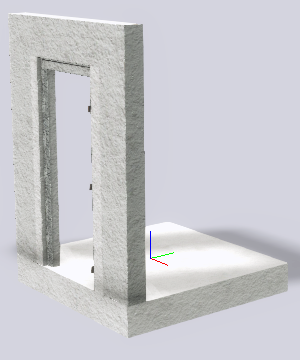
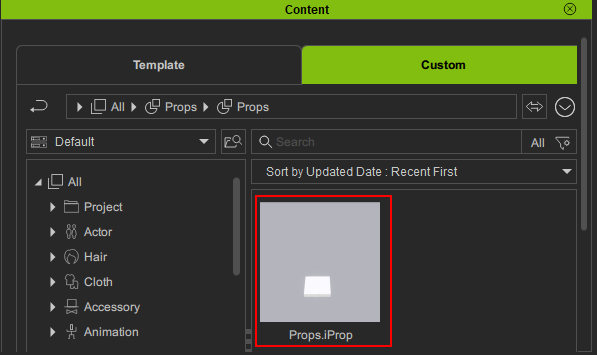
- Start with a custom or official BuildingGen floor piece. If you are using a custom floor piece, make sure its pivot point is correctly configured. Otherwise, it is recommended to utilize the official BuildingGen floor reference model “Props.iProp”, located in Content > Template > Pack > All > Props > Props > BuildingGen Sampler > Ground.
- Navigate to Modify > Attribute > Pivot section.
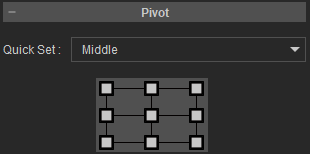
- Change the floor’s pivot position according to the part type you want tested:
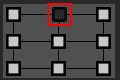
.png)
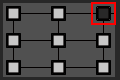
.png)
To align the walls to the floor piece, select the “Front” option in the Quick Set drop-down menu and select the Upper Center point in the pivot point diagram.
To align the pillars to the floor piece, pick the “Middle” option from the Quick Set drop-down menu and select the Upper Right point in the pivot point diagram.
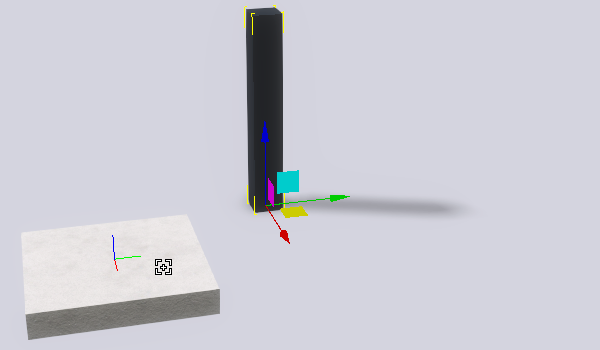
- Right-click on your wall or pillar and perform Align > Align to.
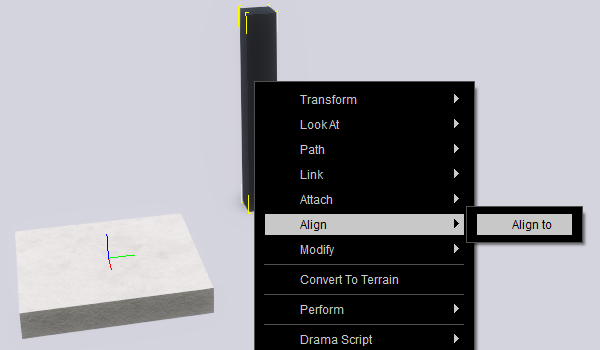
- Select the floor piece.
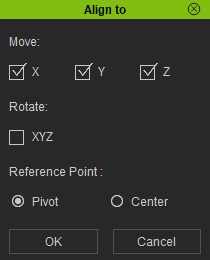
- In the subsequent Align to dialog box, enable all options under Move, and select Reference Point > Pivot. The prop should relocate immediately to align with the floor piece’s pivot point.
- Click OK to close the dialog box.
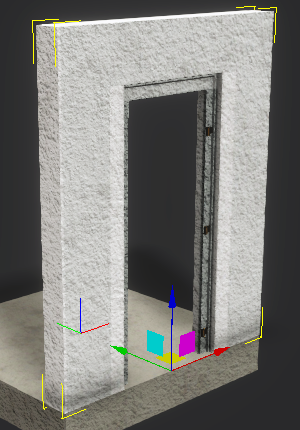
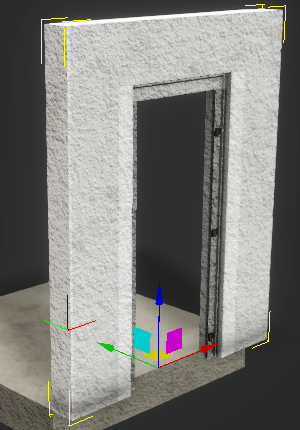
Walls will reposition to the edge of the floor piece, where the pivot position is set. Pillars will reposition to the corner of the floor piece, where the pivot position is set. - For walls, make sure that the bottom, front-facing edge of the wall is seamlessly aligned with the edge of the floor piece.
-
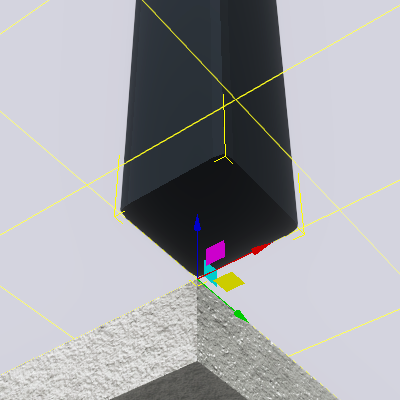
For pillars, make sure the bottom center is aligned perfectly with the corner edge of the floor piece.
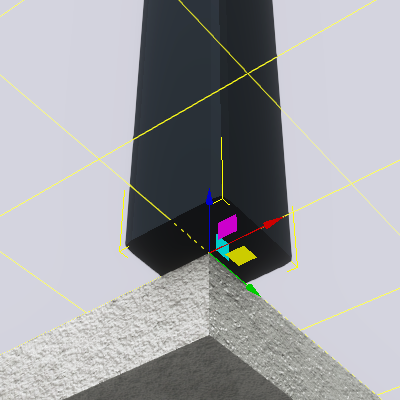
Here, the center of the pillar part is aligned with the corner edge of the floor part.
Here, the center of the pillar part is misaligned with the corner edge of the floor part, due to incorrect pillar pivot settings.
-
Select the wall or pillar and save it in via the Custom tab. This part can later be used within the BuildingGen Packager. For more information on saving your building assets, see here.
|
|
|
The edges of the wall and the side edge of the floor part are properly aligned. |
The edges of the wall extend over the side of the floor part due to incorrect wall pivot settings. |
